Updating Adobe SAML Certificate
Revision as of 03:39, 14 January 2025 by Jrobertson (talk | contribs)
How to update your Adobe SAML certificate when it is expiring:
Generate a new signing certificate on the Adobe Admin Console
- Go to Adobe’s Admin Console
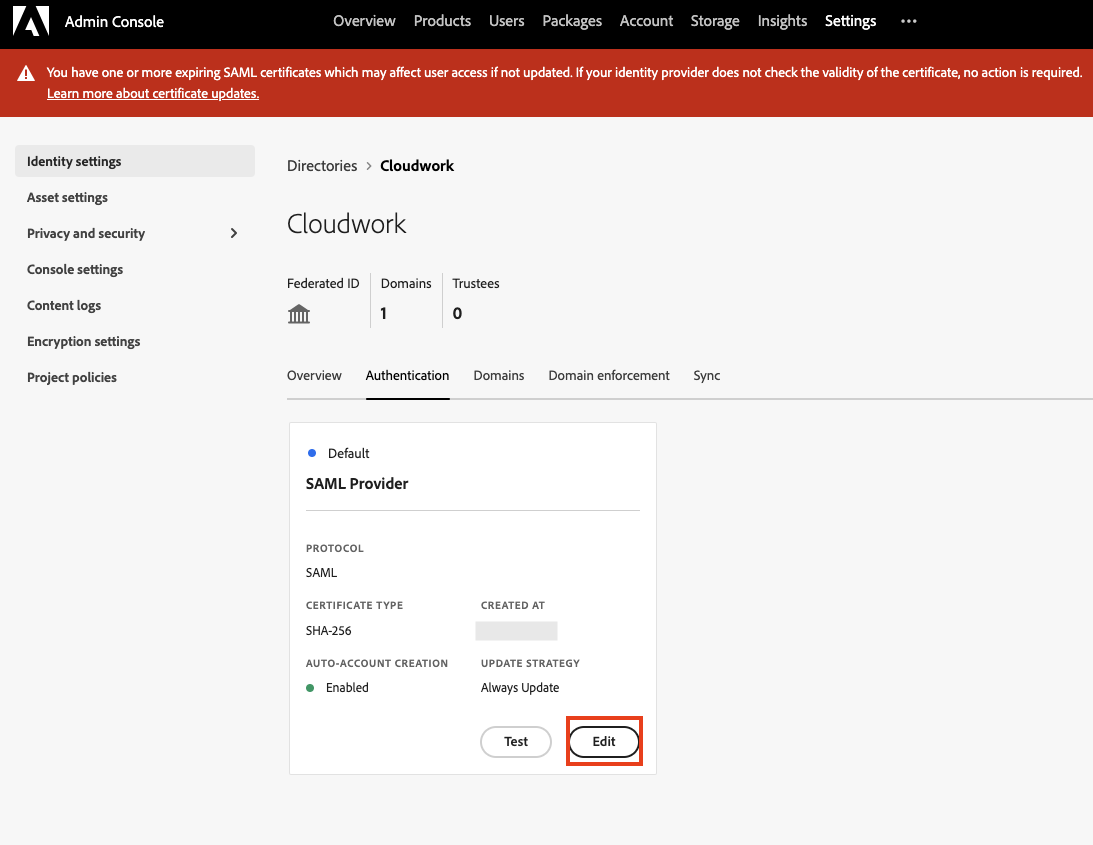
- Go to Settings > Identity Settings > Authentication
- Select “Edit” on the default SAML Provider
- On the Edit configuration, click on the 3rd step “ Certificates”, and select “Create a certificate signing request”
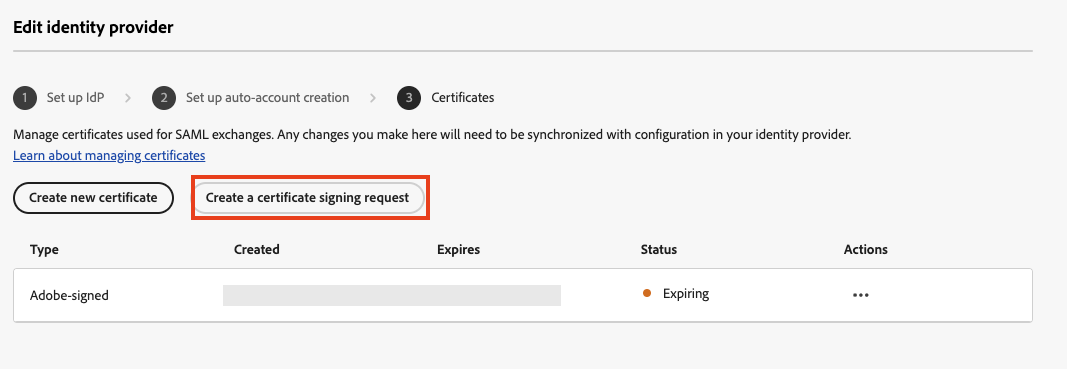
- Fill out the form and submit it.
- Once a new certificate has been created, select “Download certificate” from the Actions down menu options.

- Open up the downloaded certificate and copy its contents.


