Difference between revisions of "Canvas Sync Integration"
Jump to navigation
Jump to search
Jrobertson (talk | contribs) |
Jrobertson (talk | contribs) |
||
| Line 1: | Line 1: | ||
Integration between Cloudwork Accounts to Canvas, the Canvas sync process will sync Cloudwork’s accounts based on their SIS IDs. As part of the canvas sync, it will sync parents' and students' accounts and their relationships (please refer to [https://wiki.studentnet.net/index.php/Canvas_Observer_Roles Canvas Observer Roles]) | Integration between Cloudwork Accounts to Canvas, the Canvas sync process will sync Cloudwork’s accounts based on their SIS IDs. As part of the canvas sync, it will sync parents' and students' accounts and their relationships (please refer to [https://wiki.studentnet.net/index.php/Canvas_Observer_Roles Canvas Observer Roles]) | ||
| + | |||
This documentation will show the steps for initial setup for integrating Cloudworks and Canvas | This documentation will show the steps for initial setup for integrating Cloudworks and Canvas | ||
Revision as of 04:18, 21 January 2025
Integration between Cloudwork Accounts to Canvas, the Canvas sync process will sync Cloudwork’s accounts based on their SIS IDs. As part of the canvas sync, it will sync parents' and students' accounts and their relationships (please refer to Canvas Observer Roles)
This documentation will show the steps for initial setup for integrating Cloudworks and Canvas
Contents
Setting up
In your Canvas Instructure
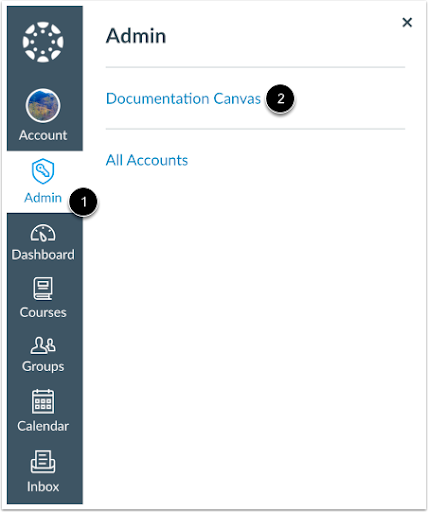
- In Global Navigation, click the Admin link and select the account
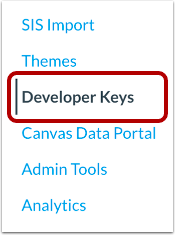
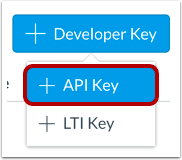
- On the Account Navigation Panel, click on the Developer Keys > Add Developer Key > API Key
- On Key Settings the Required Fields are:
* Key Name: Cloudwork
* Redirect URIs: <Cloudwork URL>/canvas/authorize Example: https://demo-login.cloudworkengine.net/canvas/authorize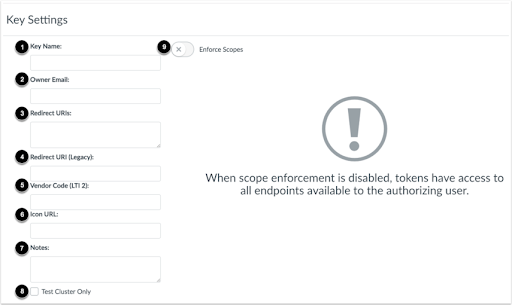
- Once set up, switch ON the state of the developer key. Both Client ID and Secret Key will be listed under Details



Back in Cloudwork Canvas Settings
- Enter all details and submit: Canvas URL, Canvas Client Id and Canvas Secret
- After clicking on Submit, it will redirect you to the canvas site to authorise
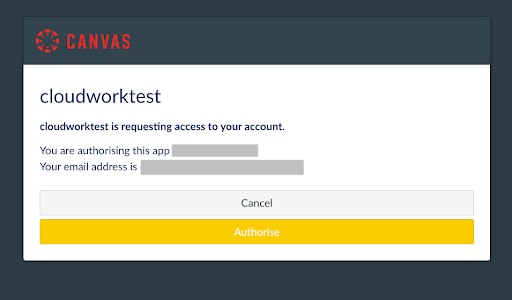
- Once authorised, it will redirect you to your Cloudwork Canvas Settings, and you should see an authentication success message
- Connect Account to finalise the setup. Select the Canvas Account to be synced with Cloudworks and enable Sync Accounts
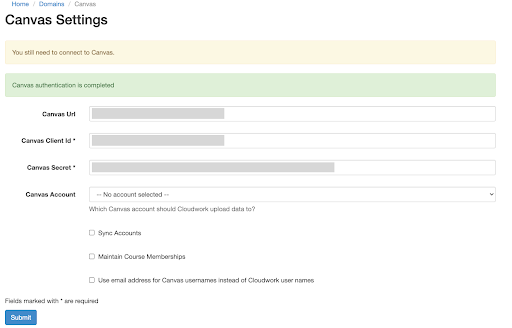
- Submit to save changes


Information Synced from Cloudwork into Canvas
- Full Name
- Default Email
- Username
- SIS ID
- Relationships*
- Create an observer link between a Parent and Student, more information on that here. Please note that the observer link is visible only after the Student has been enrolled on a course
