Difference between revisions of "Canvas Sync Integration"
Jump to navigation
Jump to search
Jrobertson (talk | contribs) |
Jrobertson (talk | contribs) |
||
| Line 8: | Line 8: | ||
# In Global Navigation, click the Admin link and select the account<br>[[Image:canvasint1.png]]<br> | # In Global Navigation, click the Admin link and select the account<br>[[Image:canvasint1.png]]<br> | ||
# On the Account Navigation Panel, click on the Developer Keys > Add Developer Key > API Key<br>[[Image:canvasint2.png]][[Image:canvasint3.png]]<br> | # On the Account Navigation Panel, click on the Developer Keys > Add Developer Key > API Key<br>[[Image:canvasint2.png]][[Image:canvasint3.png]]<br> | ||
| − | # On Key Settings | + | # On Key Settings the Required Fields are:<br> * Key Name: Cloudwork <br> * Redirect URIs: <Cloudwork URL>/canvas/authorize '''Example: https://demo-login.cloudworkengine.net/canvas/authorize''' <br>[[Image:canvasint4.png | 700px]]<br> |
# Once set up, switch '''ON''' the state of the developer key. Both Client ID and Secret Key will be listed under Details<br>[[Image:canvasint5.png| 700px]]<br> | # Once set up, switch '''ON''' the state of the developer key. Both Client ID and Secret Key will be listed under Details<br>[[Image:canvasint5.png| 700px]]<br> | ||
| − | |||
=== Back in Cloudwork Canvas Settings === | === Back in Cloudwork Canvas Settings === | ||
Revision as of 04:17, 21 January 2025
Contents
Setting up
In your Canvas Instructure
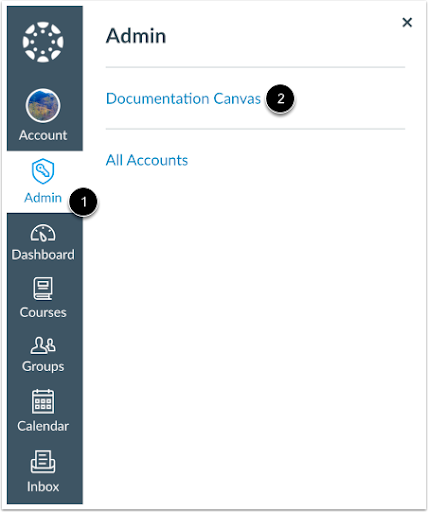
- In Global Navigation, click the Admin link and select the account
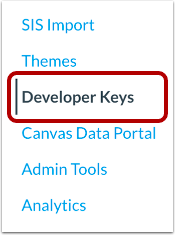
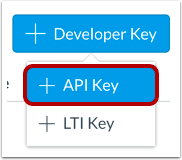
- On the Account Navigation Panel, click on the Developer Keys > Add Developer Key > API Key
- On Key Settings the Required Fields are:
* Key Name: Cloudwork
* Redirect URIs: <Cloudwork URL>/canvas/authorize Example: https://demo-login.cloudworkengine.net/canvas/authorize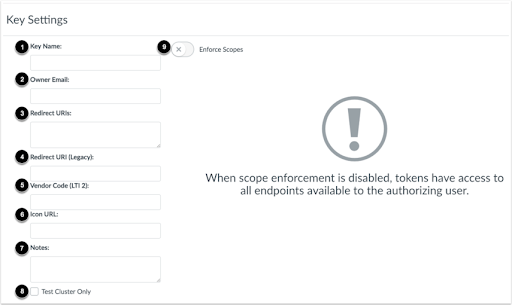
- Once set up, switch ON the state of the developer key. Both Client ID and Secret Key will be listed under Details



Back in Cloudwork Canvas Settings
- Enter all details and submit: Canvas URL, Canvas Client Id and Canvas Secret
- After clicking on Submit, it will redirect you to the canvas site to authorise
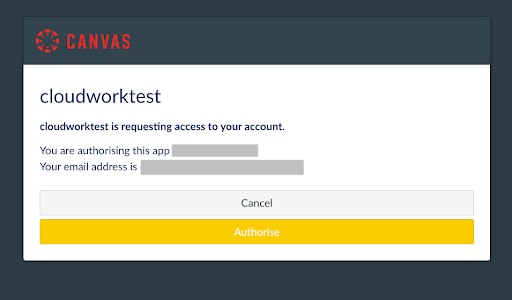
- Once authorised, it will redirect you to your Cloudwork Canvas Settings, and you should see an authentication success message
- Connect Account to finalise the setup. Select the Canvas Account to be synced with Cloudworks and enable Sync Accounts
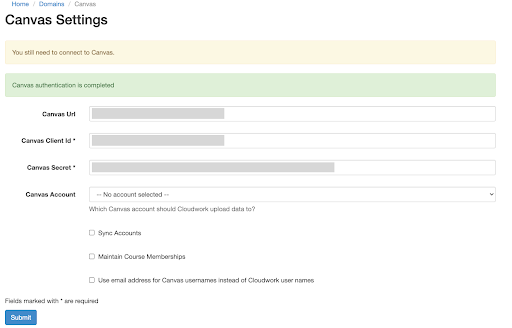
- Submit to save changes


Information Synced from Cloudwork into Canvas
- Full Name
- Default Email
- Username
- SIS ID
- Relationships*
- Create an observer link between a Parent and Student, more information on that here. Please note that the observer link is visible only after the Student has been enrolled on a course
