Difference between revisions of "Updating Adobe SAML Certificate"
Jump to navigation
Jump to search
Jrobertson (talk | contribs) |
Jrobertson (talk | contribs) |
||
| (2 intermediate revisions by the same user not shown) | |||
| Line 7: | Line 7: | ||
#On the Edit configuration, click on the 3rd step “ Certificates”, and select “Create a certificate signing request”<br>[[image:adobesecond.png]]<br> | #On the Edit configuration, click on the 3rd step “ Certificates”, and select “Create a certificate signing request”<br>[[image:adobesecond.png]]<br> | ||
#Fill out the form and submit it. | #Fill out the form and submit it. | ||
| − | #Once a new certificate has been created, select “Download certificate” from the Actions down menu options.<br>[[image:Adobethird.png]]<br> | + | #Once a new certificate has been created, select “Download certificate” from the Actions down menu options.<br>[[image:Adobethird.png]]<br>[[image:adobefourth.png]]<br> |
#Open up the downloaded certificate and copy its contents. | #Open up the downloaded certificate and copy its contents. | ||
== Replace certificate in Cloudwork == | == Replace certificate in Cloudwork == | ||
#Go to Cloudwork> SSO > Adobe Cloud | #Go to Cloudwork> SSO > Adobe Cloud | ||
| − | #Under “SAML config”, click on “Edit."<br>[[image: | + | #Under “SAML config”, click on “Edit."<br>[[image:adobefifth.png || 750px]]<br> |
| − | #On the edit page, scroll down to “Certificates”. Paste the new certificate’s contents into the “Content” field box. Ensure that “Used for Signing” is ticked before submitting.<br>[[image: | + | #On the edit page, scroll down to “Certificates”. Paste the new certificate’s contents into the “Content” field box. Ensure that “Used for Signing” is ticked before submitting.<br>[[image:adobesixth.png || 750px]]<br> |
#Once completed, please test logins using a new browser session or in incognito mode. | #Once completed, please test logins using a new browser session or in incognito mode. | ||
Latest revision as of 03:43, 14 January 2025
How to update your Adobe SAML certificate when it is expiring:
Generate a new signing certificate on the Adobe Admin Console
- Go to Adobe’s Admin Console
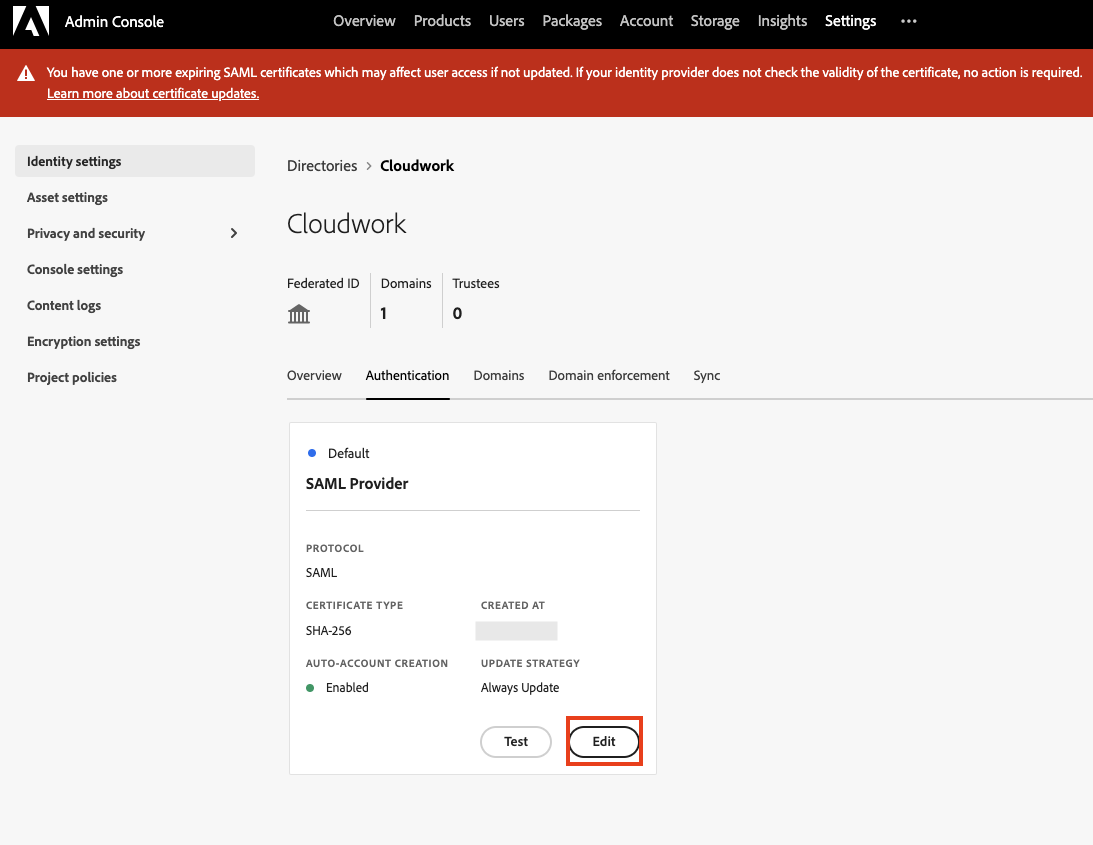
- Go to Settings > Identity Settings > Authentication
- Select “Edit” on the default SAML Provider
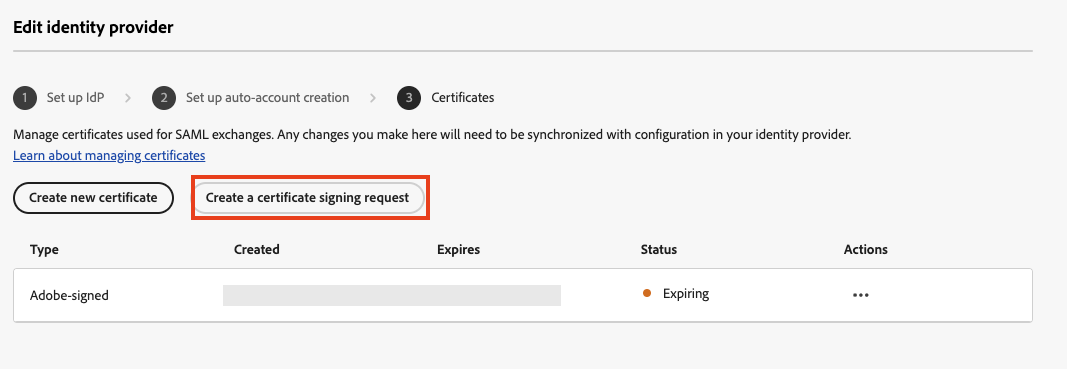
- On the Edit configuration, click on the 3rd step “ Certificates”, and select “Create a certificate signing request”
- Fill out the form and submit it.
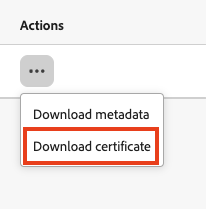
- Once a new certificate has been created, select “Download certificate” from the Actions down menu options.

- Open up the downloaded certificate and copy its contents.


Replace certificate in Cloudwork
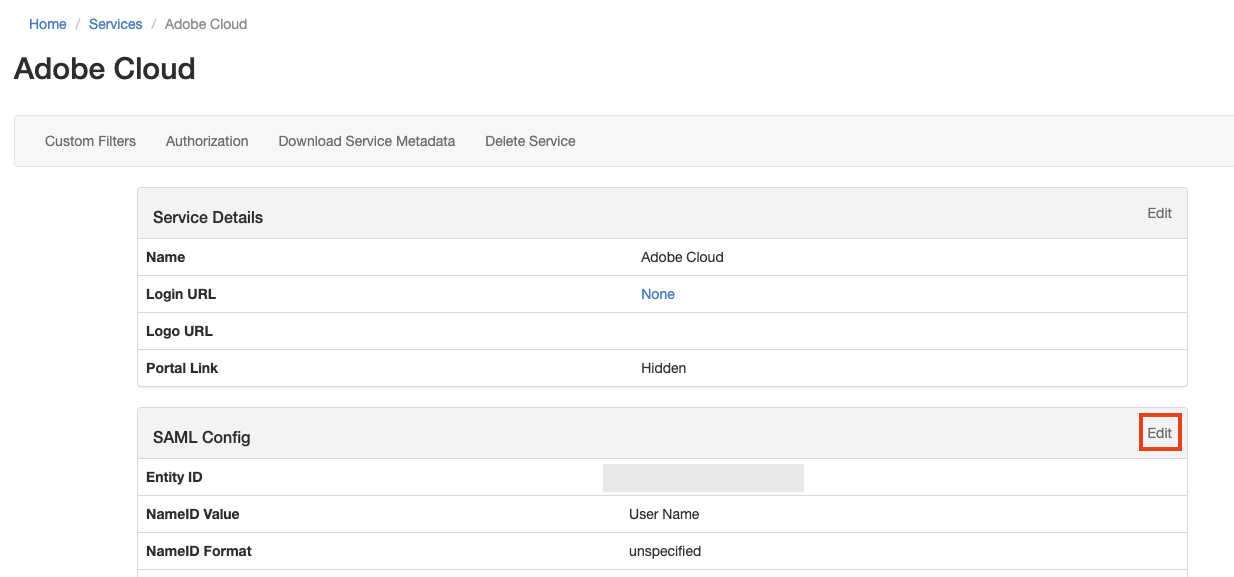
- Go to Cloudwork> SSO > Adobe Cloud
- Under “SAML config”, click on “Edit."
- On the edit page, scroll down to “Certificates”. Paste the new certificate’s contents into the “Content” field box. Ensure that “Used for Signing” is ticked before submitting.

- Once completed, please test logins using a new browser session or in incognito mode.


