Go1
Jump to navigation
Jump to search
Go1
Go1 SSO Setup in the Cloudwork Dashboard
- Navigate to Single Sign On>Add New Service>Custom SAML Service
- Fill out the form:
- Name = Go1
- Entity ID = urn:amazon:cognito:sp:ap-southeast-2_oZpTmvPtK
- ACS = https://auth-go1-sso-user-pool-prod-1.auth.ap-southeast-2.amazoncognito.com/saml2/idpresponse
- Single Logout Service = Leave Blank
- NameID Format = select from drop down urn:oasis:names:tc:SAML:1.1:nameid-format:unspecified
- Name ID = From the drop down select Email
- Login URL = The Go1 portal login URL
- Click Submit
- Navigate to Attribute Map>Edit
- Fill out the table as is and click Submit:
| Value | Maps to |
|---|---|
| User Name | User-Name |
| Last Name | https://schemas.xmlsoap.org/ws/2005/05/identity/claims/surname |
| First Name | https://schemas.xmlsoap.org/ws/2005/05/identity/claims/givenname |
| https://schemas.xmlsoap.org/ws/2005/05/identity/claims/emailaddress | |
| GUID | objectguid |
| Role | role |
| Groups | groups |
Go1 SSO Setup in Go1 Dashboard
- Navigate to Single Sign On Services>Identity Provider>Metadata Details>Copy the EntityID, Sign On Endpoint and Log out Endpoint
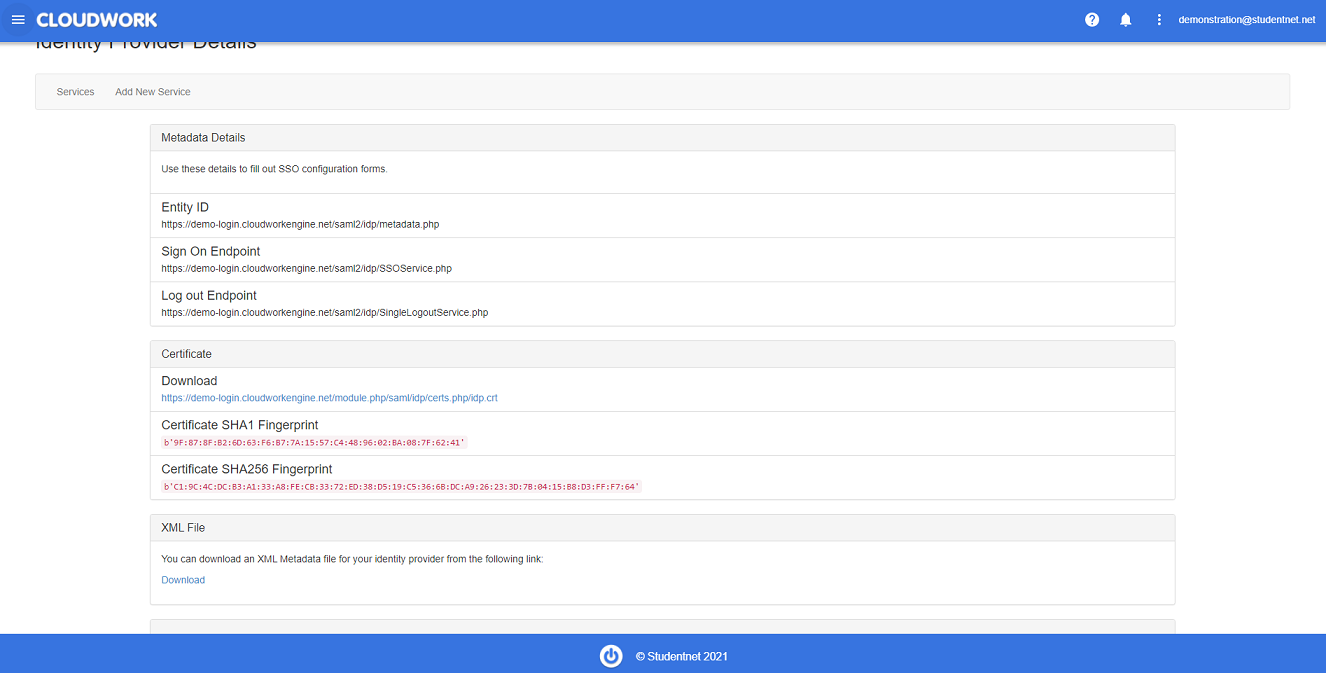 Example of Identity Provider
 - In the Go1 dashboard enter in the following information:
- Login URL: Paste the Sign On Endpoint from Step 1
- Certificate field: Take the contents of the X509 certificate from the XML File under Cloudwork Dashboard>Single Sign On>Identity Provider>XML File>Download
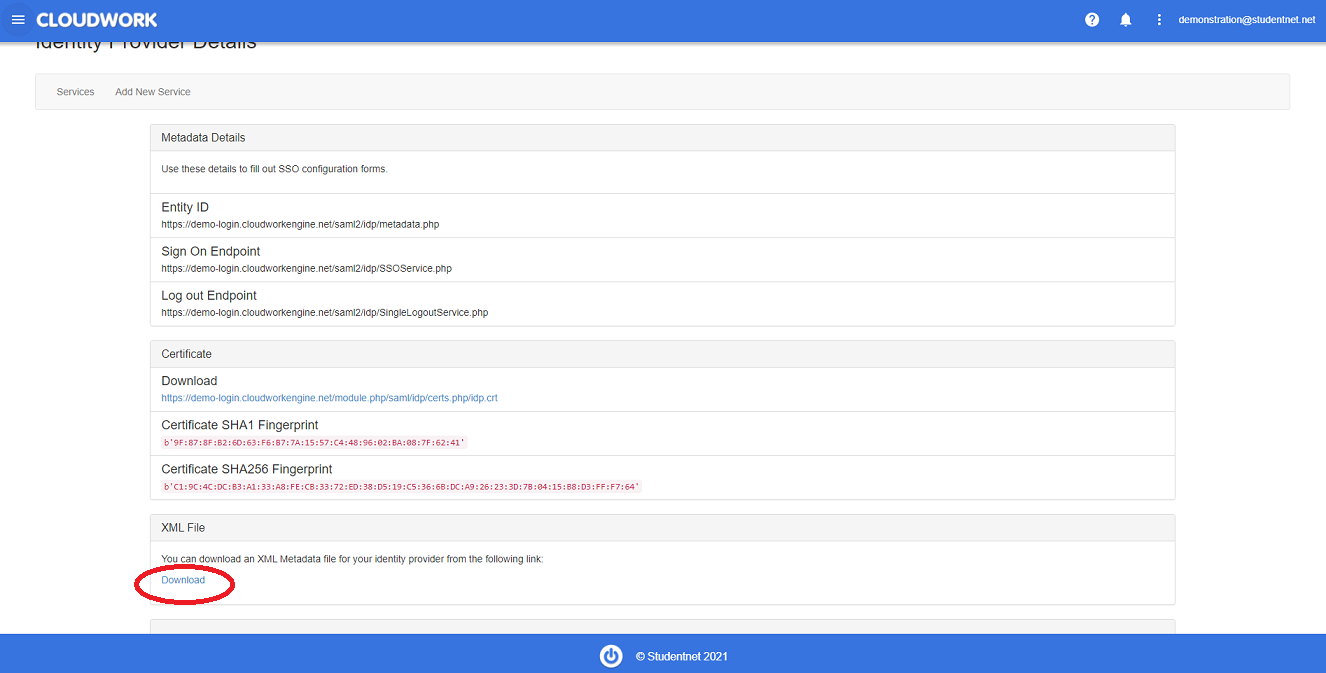 Location of XML File Download
 - Logout URL: Paste the Logout Endpoint from Step 1
- Entity ID: Paste the EntityID from Step 1
- Field Mapping: {"email":"https://schemas.xmlsoap.org/ws/2005/05/identity/claims/emailaddress","family_name":"https://schemas.xmlsoap.org/ws/2005/05/identity/claims/surname","given_name":"https://schemas.xmlsoap.org/ws/2005/05/identity/claims/givenname"}
- Click Submit


