Digistorm App
Jump to navigation
Jump to search
Digistorm is a school app for parents, student and staff
Setting Up SSO with Digistorm on the Cloudwork Side
- Contact Digistorm Support for the redirect URLs for your school following the email template below
- Login to your School's Cloudwork Dashboard
- Go to SSO Services
- Navigate to OpenID Connect
- Click Add New Service
- Fill in Name: "Digistorm"
- In Redirect URLs, input the URLs you got from Digistorm having each URL as a new line
- Example:
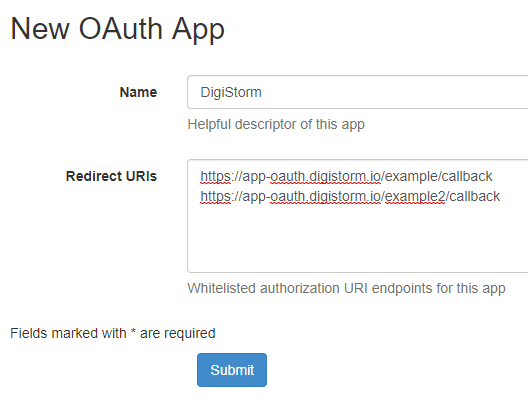
- Click Submit
- Afterwards copy the Client ID and Secret
- Navigate OpenID Connect Apps>Identity Provider>Authorize endpoint
- Copy Authorize endpoint
- Send to the Digistorm Support both the Client ID and Secret, as well as Authorize endpoint

Email Template
Hi Digistorm,
<School Name> is wanting to enable SSO between Digistorm App and Cloudwork.
Could you provide our school's redirect URLs so we can begin the process?
Setting Up SSO with Digistorm on the Digistorm Side
Provide the following information to Digistorm
- Base URL = The value under Cloudwork Dashboard>Single Sign On Services>Open ID Connect>Identity Provider>Authorize endpoint
- Required Scopes: Provide the following list to Digistorm
- offline_access
- openid
- profile
- https://scopes.cloudwork.id/profile
