Difference between revisions of "Digistorm App"
Jump to navigation
Jump to search
| Line 6: | Line 6: | ||
#Login to your School's Cloudwork Dashboard | #Login to your School's Cloudwork Dashboard | ||
#Go to '''SSO Services''' | #Go to '''SSO Services''' | ||
| − | #Navigate to ''' | + | #Navigate to '''OpenID Connect''' |
#Click '''Add New Service''' | #Click '''Add New Service''' | ||
#Fill in '''Name''': "Digistorm" | #Fill in '''Name''': "Digistorm" | ||
Revision as of 05:18, 24 April 2025
Digistorm is a school app for parents, student and staff
Setting Up SSO with Digistorm
- Contact Digistorm Support for the redirect URLs for your school following the email template below
- Login to your School's Cloudwork Dashboard
- Go to SSO Services
- Navigate to OpenID Connect
- Click Add New Service
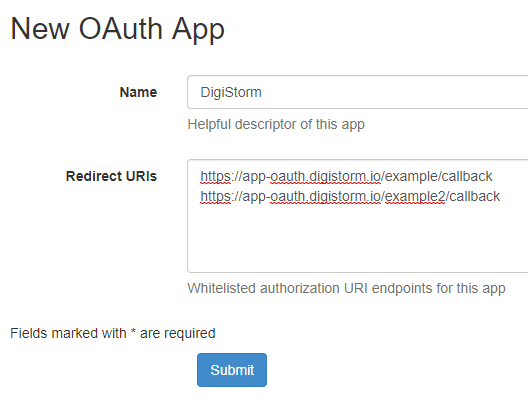
- Fill in Name: "Digistorm"
- In Redirect URLs, input the URLs you got from Digistorm having each URL as a new line
- Example:
- Click Submit
- Afterwards copy the Client ID and Secret
- Navigate OpenID Connect Apps>Identity Provider>Authorize endpoint
- Copy Authorize endpoint
- Send to the Digistorm Support both the Client ID and Secret, as well as Authorize endpoint

Email Template
Hi Digistorm,
<School Name> is wanting to enable SSO between Digistorm App and Cloudwork.
Could you provide our school's redirect URLs so we can begin the process?
