Difference between revisions of "Cloudwork Passkey- Apple devices"
Jump to navigation
Jump to search
(Created page with "==1. Enable iCloud Keychain in your Apple Devices== ===Turn on iCloud Keychain on your Mac=== #Choose Apple menu > System Settings. #Click your name, then click iCloud. #Clic...") |
(No difference)
|
Revision as of 05:15, 28 November 2024
Contents
1. Enable iCloud Keychain in your Apple Devices
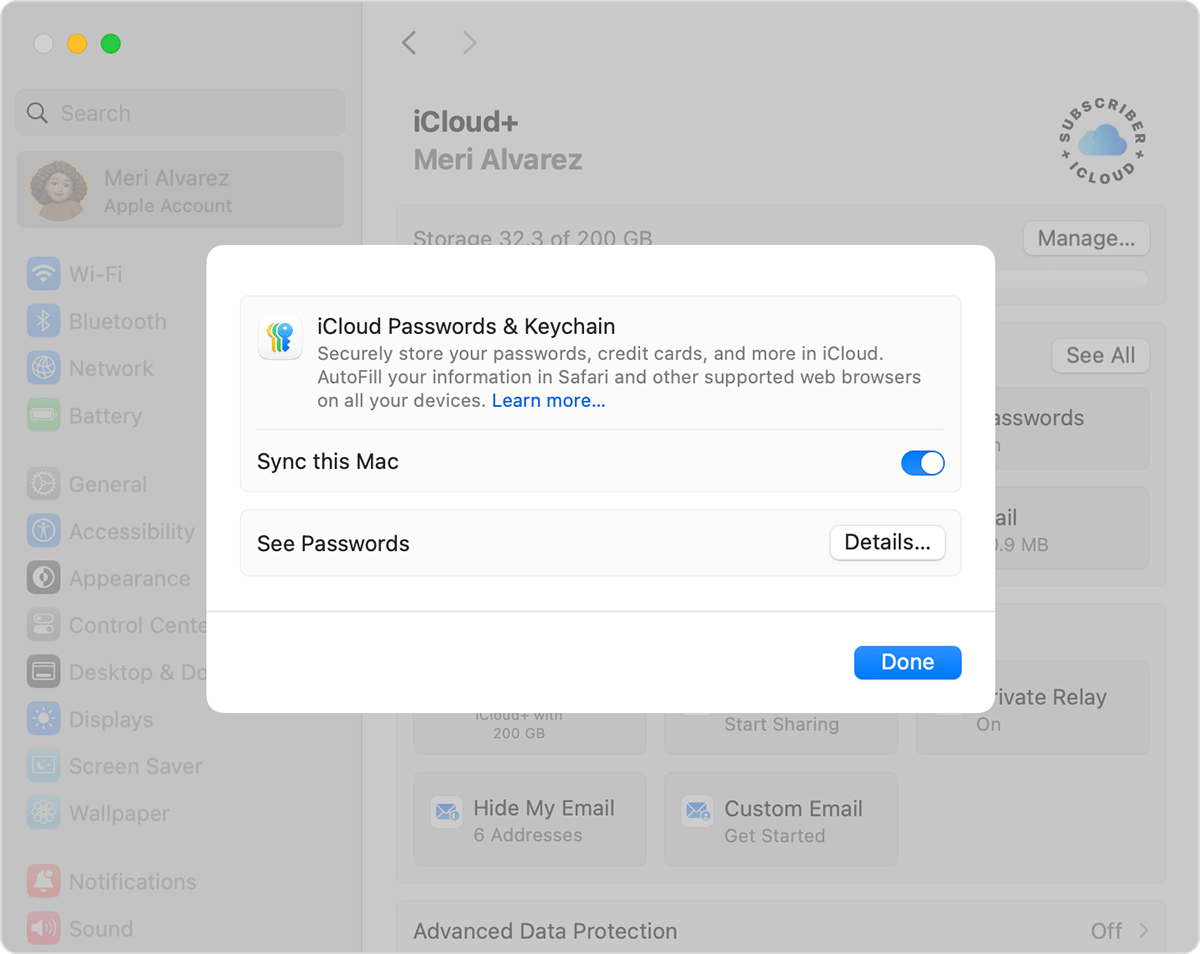
Turn on iCloud Keychain on your Mac
- Choose Apple menu > System Settings.
- Click your name, then click iCloud.
- Click Passwords. In macOS Sonoma or earlier, click Passwords & Keychain.
- Click Sync this Mac, then click Done

Turn on iCloud Keychain on your iPhone, iPad or Apple Vision Pro
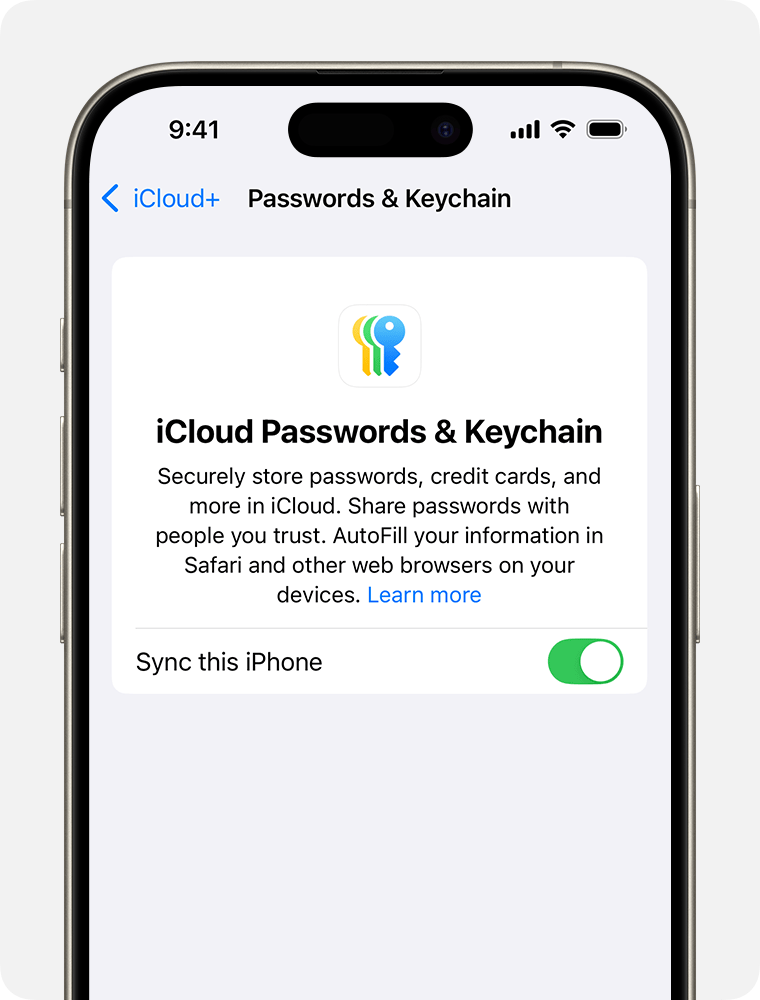
- Tap Settings, tap your name, then choose iCloud.
- Under Saved to iCloud, tap Passwords. In iOS 17 or earlier, tap Passwords and Keychain.
- Tap Sync this [Device] to turn on iCloud Passwords & Keychain. You may be asked for your passcode or Apple Account password

2. Enable the Passkey feature in CloudworkID Settings
- Settings > Cloudwork ID Settings > Features > Edit
- On Allow Passwordless Login, select “Use Passkeys”
- Click on Submit
3. Set up Passkeys in CloudworkID Account
- Log into CloudworkID
- Go to Settings > Security > Passkeys
- Add new Passkey
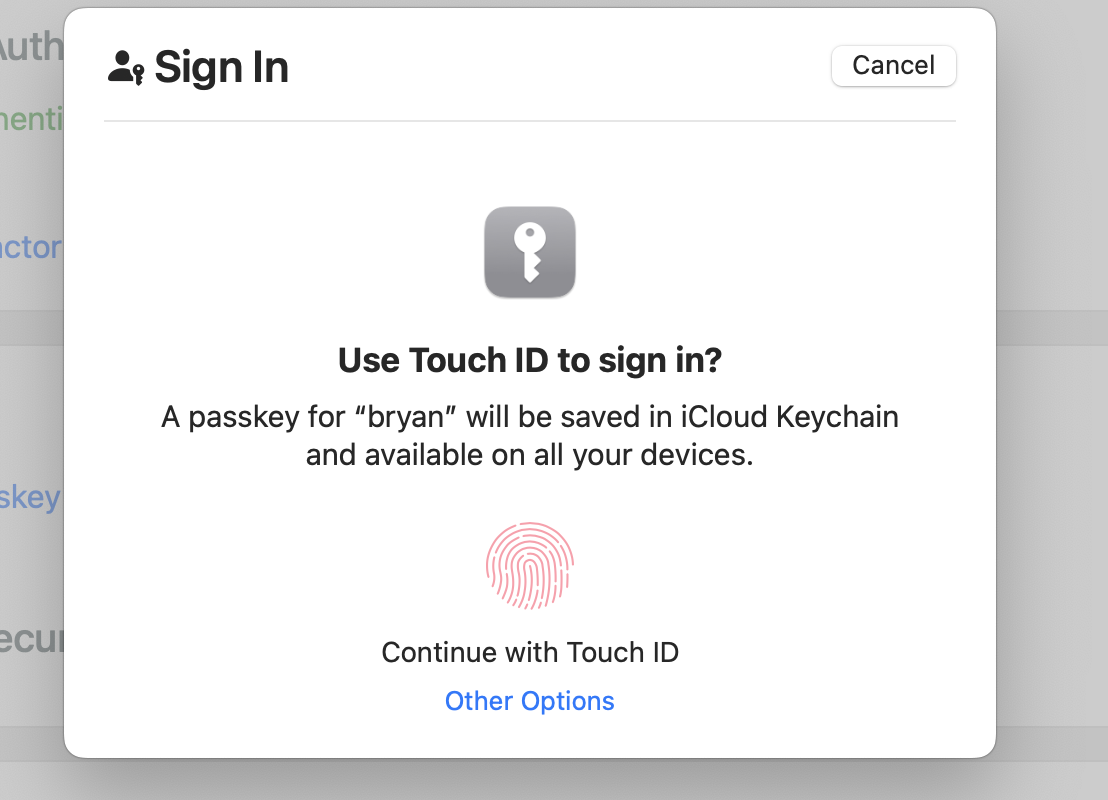
- Select the iCloud keychain option and follow the prompt instructions.
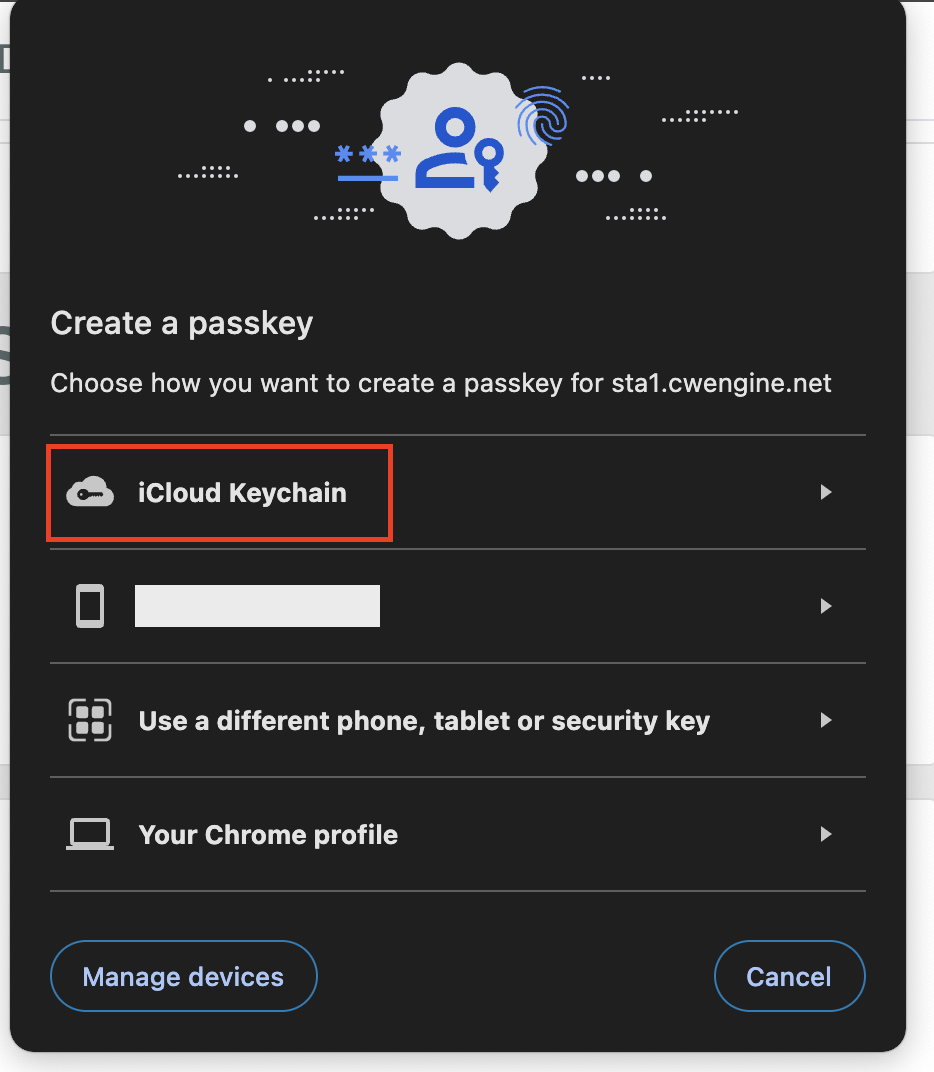
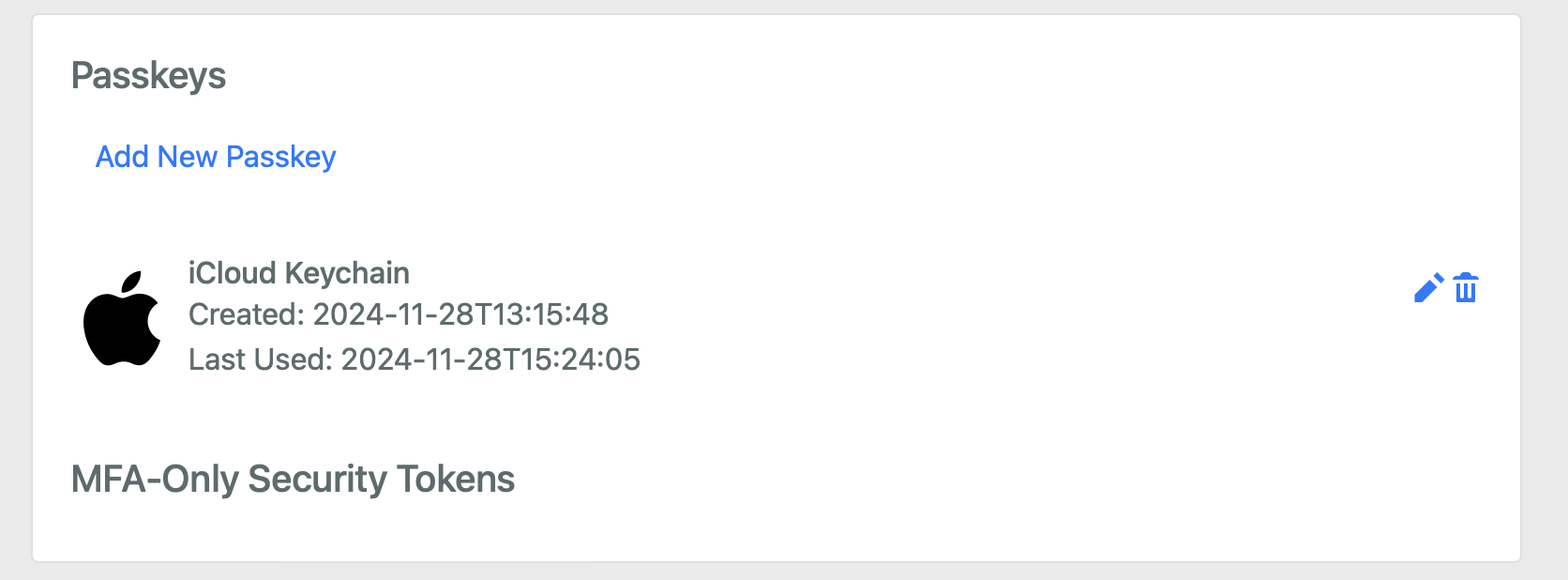
- The Passkey setup is completed.