Difference between revisions of "Delegate Password Reset Permission"
Jump to navigation
Jump to search
| Line 7: | Line 7: | ||
#On the Users or Groups screen, click Next. | #On the Users or Groups screen, click Next. | ||
#On the Tasks to Delegate screen, check Reset user passwords and force password change at next logon and click Next. | #On the Tasks to Delegate screen, check Reset user passwords and force password change at next logon and click Next. | ||
| − | #Delegate Permission to Reset AD User Account Passwords | + | #Delegate Permission to Reset AD User Account Passwords<br>[[File:DelegatePasswordReset.PNG]] |
| − | + | #Click Finish. | |
| − | |||
| − | [[File:DelegatePasswordReset.PNG]] | ||
| − | |||
| − | Click Finish. | ||
[[Category:Cloudwork Setup]] | [[Category:Cloudwork Setup]] | ||
Revision as of 23:40, 31 August 2021
- Log on to Windows Server as a domain administrator and open Server Manager from the icon on the desktop Taskbar or from the Start screen.
- Select Active Directory Users and Computers (ADUC) from the Tools menu.
- In the left pane of ADUC, expand your domain, right-click the OU for which you want to delegate permissions and select Delegate Control from the menu.
- Click Next on the welcome screen.
- On the Users or Groups screen, click Add.
- In the Select Users, Computers, or Groups dialog, type the name of the AD group you want to give permission to reset user account passwords and click OK.
- On the Users or Groups screen, click Next.
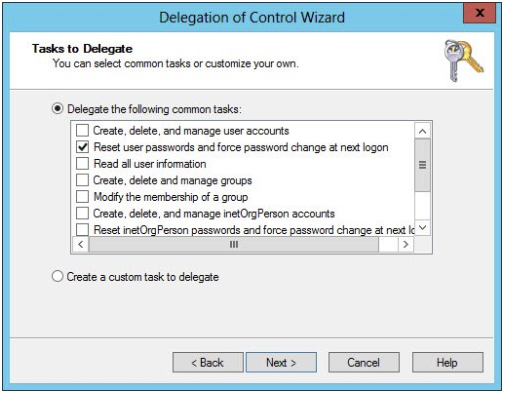
- On the Tasks to Delegate screen, check Reset user passwords and force password change at next logon and click Next.
- Delegate Permission to Reset AD User Account Passwords
- Click Finish.

